
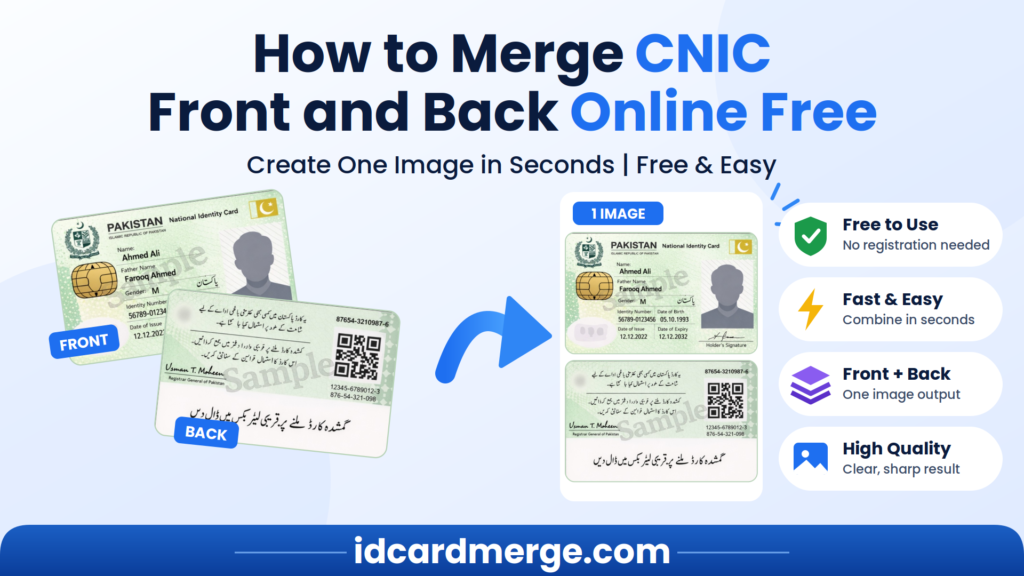
Merge CNIC front and back online for free with IDCardMerge.com. Combine both sides into one page, then download, print, or save your CNIC image easily.
Merge CNIC Front and Back Online Free
Need to put both sides of your CNIC on one page? You can do it easily with the Merge CNIC Front and Back tool on IDCardMerge.com. Instead of keeping the front and back images separate, this tool helps you arrange them together in one document for easier printing, saving, or sharing where permitted.
The process is simple and useful for students, job seekers, office workers, and anyone who needs a clear copy of their Computerized National Identity Card (CNIC). You do not need advanced editing skills or complicated software. Just prepare clear images of both sides and use the tool to combine them in a convenient layout.
Features of the Merge CNIC Front and Back Tool
| Feature | Description |
|---|---|
| Easy to Use | Simple steps help you arrange both CNIC sides. |
| Front and Back Together | Place both sides on a single page. |
| Online Access | Use the tool through a compatible web browser. |
| Convenient Printing | Prepare a combined copy for printing. |
| Document Preparation | Create a file for permitted personal or official use. |
| Beginner-Friendly | No advanced photo-editing skills are needed. |
What Is the Merge CNIC Front and Back Tool?
The Merge CNIC Front and Back tool helps you place the front and back sides of your Pakistani CNIC on a single page. It saves you from manually arranging two separate images using a photo editor or other software.
You can use the combined image for personal records, printing, or document preparation when the receiving organization allows this format.
IDCardMerge.com is an independent online tool. It is not an official NADRA website and does not issue or verify identity cards.
How to Merge CNIC Front and Back Online
Follow these simple steps to prepare your CNIC image:
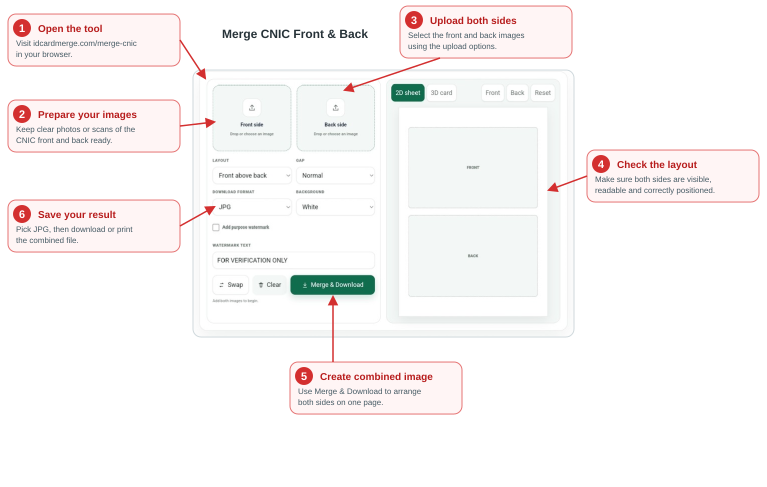
- Open the tool: Visit the Merge CNIC tool.
- Prepare your images: Keep clear pictures or scans of the front and back of your CNIC ready.
- Upload both sides: Select the front image and back image using the available upload options.
- Check the layout: Make sure both sides are visible, readable, and correctly positioned.
- Create your combined image: Use the tool’s available merge option to arrange both sides on one page.
- Save your result: Download or print the combined file if the tool provides that option.
Why Should You Merge Both Sides of Your CNIC?
Sometimes, an organization asks for copies of both sides of your identity card. Keeping the images separate can make printing and document preparation less convenient.
Combining both sides on one page can help you:
- Keep your CNIC images together in one place.
- Prepare a neat copy for printing.
- Organize documents for job applications and other permitted purposes.
- Reduce the need to arrange images manually.
- Save time when preparing digital records.
Important: Always check the receiving organization’s instructions before submitting a merged CNIC image. Some organizations may require separate images, a specific file format, or a different page layout.
Tips for Getting a Clear CNIC Image
Before merging your CNIC images, follow these tips to get a better result.
1. Use Clear Pictures
- Take pictures in good lighting. Avoid blurry images, dark shadows, and strong reflections that hide the printed information.
2. Keep the Entire Card Visible
- Make sure all four corners of the front and back sides are included. Do not crop out important details.
3. Check the Text Before Saving
- Review the combined image carefully. Names, numbers, dates, and other printed information should remain readable.
4. Choose a Suitable Page Size
- If you plan to print the image, check the page size and layout before printing. Make sure the CNIC is not stretched or made too small to read.
5. Protect Your Personal Information
- Your CNIC contains sensitive personal details. Use only websites and services you trust, avoid sharing your file through public links, and delete unnecessary copies from shared devices.
- IDCardMerge.com describes its tools as browser-based, but you should check the current tool’s file-handling information and Privacy Policy before uploading sensitive documents.
Is It Free to Merge CNIC Front and Back Online?
You can visit the Merge CNIC tool on IDCardMerge.com to check the available features and use instructions. If the tool is available without a fee, you can prepare your combined image without purchasing separate editing software.
You do not need advanced design knowledge to arrange two card images on one page. Just follow the on-screen instructions and review the final result before saving it.
Can I Use a Merged CNIC Copy for Official Work?
That depends on the organization receiving your documents. A merged image may be suitable for some applications, printing needs, or personal records, but it is not accepted in every situation.
Before submitting your file, confirm the required format with the relevant office, employer, bank, educational institution, or other organization. Never change the card’s information or use an edited image to misrepresent your identity.
Frequently Asked Questions (FAQs)
1. How can I merge CNIC front and back online?
Open the Merge CNIC tool, follow the upload instructions, arrange both images, and save the combined file if the download option is available.
2. Can I put both sides of my CNIC on one page?
Yes. A CNIC merging tool can arrange the front and back images on a single page, depending on its available layout options.
3. Do I need photo-editing skills to merge my CNIC?
No advanced skills are needed. The tool is intended to make the process easier for people who want to combine two images without using complex editing software.
4. Can I print the merged CNIC image?
You can print the combined file if the tool provides a suitable downloadable result. Check the page layout and image clarity before printing.
5. Is a merged CNIC image accepted everywhere?
No. Acceptance depends on the organization and its document requirements. Always confirm whether a combined image is allowed before submitting it.
6. Is IDCardMerge.com an official NADRA website?
No. IDCardMerge.com is an independent document-preparation website. It is not affiliated with NADRA and cannot issue, renew, or verify CNICs.
7. Is it safe to upload my CNIC online?
An identity card contains sensitive information. Before uploading it to any website, review the site’s privacy and file-handling practices. Avoid uploading your CNIC to services you do not trust.
Merge CNIC Front and Back with IDCardMerge.com
Preparing both sides of your CNIC does not have to be difficult. The Merge CNIC Front and Back tool is designed to help you arrange your images on one page for easier printing and document preparation.
Ready to get started? Visit IDCardMerge.com/merge-cnic/ and follow the available instructions to prepare your combined CNIC image.
Keep your personal information secure and always check the receiving organization’s document requirements before submitting your file.