
More Free ID & Document Tools — best choice
Use all tools directly in your browser. No uploads, no signup, and no app installation required. Your files stay on your device.
Banks, schools, offices and online application forms may ask you to provide both sides of an identification card in one file. Preparing two separate photos can make the process confusing, especially when a form accepts only one upload.Idcardmerge.com helps you merge ID card front and back into one organised image or document. Add your front and back pictures, choose a suitable arrangement, review the result and download the combined file using the available options.
Whether you need a CNIC, Aadhaar, national ID card, driving licence or another supported two-sided document, our tool is designed to make image preparation easier. You can also explore the available page settings to adjust the appearance of your merged card.
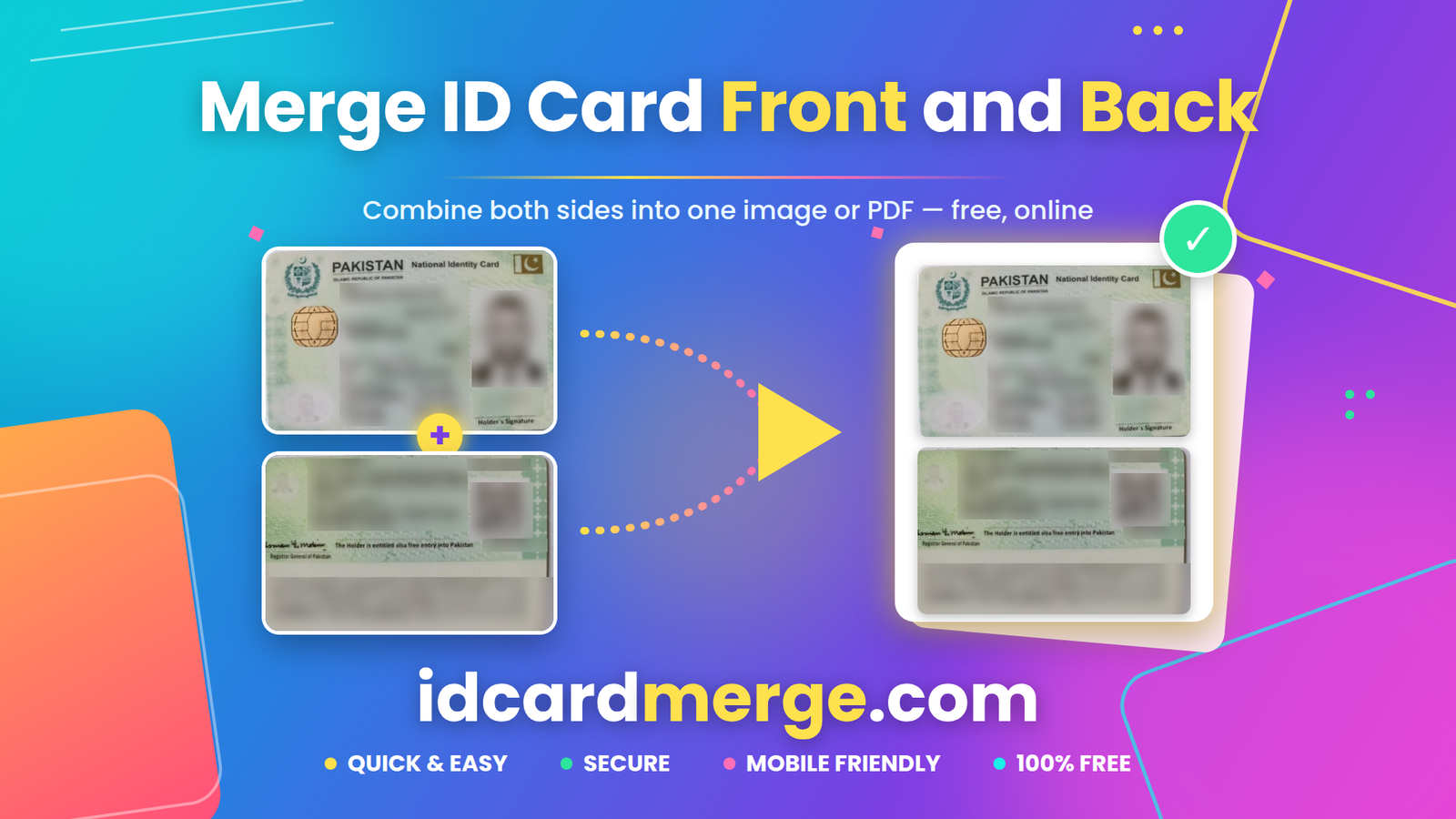
Free Online ID Card Merger – Combine Both Sides on One Page
An identification card contains information that may appear on both sides. The front usually shows details such as your name and photograph, while the back may include an address, barcode or other information.An ID card merger brings these two images together in a single layout. Instead of opening a separate photo editor and arranging the pictures manually, you can use a dedicated tool to prepare your document.
Idcardmerge.com provides controls for arranging the front and back images and adjusting available settings. The final result depends on the quality of your original pictures and the options supported by the tool.Before submitting your file, check the receiving organisation's instructions for image format, file size, page dimensions and document readability.
How to Merge ID Card Front and Back
Follow these steps to create a combined ID card file.
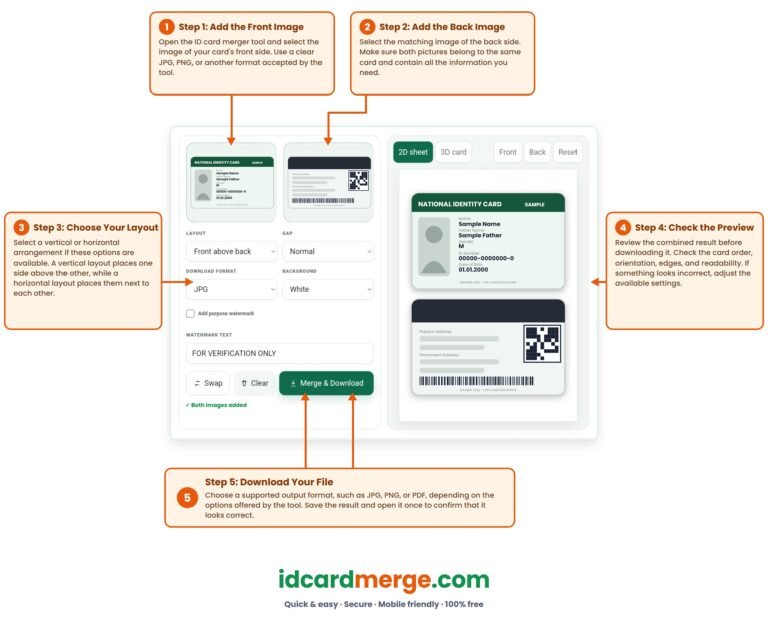
1. Select the Front Image
Open the merger tool and add a clear picture of the front side of your card. Make sure the image includes the important details and does not cut off the card's edges.
2. Add the Back Image
Select the matching back-side picture. Use an image format accepted by the tool and check that the text, photograph or barcode is visible.
3. Choose Your Page Layout
Use the available layout settings to arrange the two sides. Depending on the options provided, you may be able to place the front above the back or position both images side by side.
4. Adjust the Page Settings
Choose the available card type, paper size, spacing and other settings to suit your needs. Review the preview to see how the images fit on the page.
5. Add a Watermark if Needed
If you need to share a copy for a specific purpose, consider adding a short watermark. For example, you might write “For university admission only” when appropriate. Keep it away from important information.
6. Merge and Download
Check the image order, orientation and readability before selecting Merge & Download. Choose an output format offered by the tool and open the saved file to confirm that it meets your requirements.
What Can You Change in the Page Settings?
Different documents may need different layouts. The available settings help you prepare a result that suits your intended use.
Card type: Select a matching card type when the option is available.
Paper size: Choose a supported page size according to your printing or submission needs.
Card dimensions: Use the appropriate dimensions when accurate physical sizing is required
Spacing: Adjust the gap between the front and back images.
Background: Choose a suitable background if this setting is available.
Watermark: Add a short purpose-related note to the combined document.
Cut border: Use a border or guide if provided and needed for trimming
Merge layout: Select a supported arrangement for the two sides.
Why Does the Correct ID Card Size Matter?
Many standard bank and identification cards use the ISO ID-1 dimensions of 85.6 × 54 mm. However, not every identity document uses this size, so you should check the dimensions of your particular card.
Correct sizing matters when you need a printed copy that closely matches the original card. Enlarging an image to fill an entire sheet may change its appearance and make the document unsuitable for certain requirements.For printing, check the selected card dimensions, paper settings and print scaling. If the receiving organisation specifies a particular size, follow those instructions.
Do not assume that every merged image will print at its original dimensions automatically.Image clarity also depends on the source photograph, resolution and export settings. A clear original image generally produces a more readable result than a blurry or poorly lit photograph.
Merge Different Types of ID Cards
Different countries and organisations use different identification documents. Idcardmerge.com provides dedicated pages for several common card types.
Useful Features for Better ID Card Images
Tips for a Clear and Readable Result
Is It Safe to Merge an ID Card Online?
Identification documents can contain private information, including your name, photograph, address, and identification number. Before using an online tool, understand how it handles your files.Check the website's privacy information to learn whether images are processed in your browser or sent to a server. Do not rely on a privacy guarantee unless the actual tool behaviour supports it.Use a trusted device, share your documents only with the intended recipient, and avoid leaving sensitive files on public or shared computers. A watermark may communicate the purpose of a copy, but it does not guarantee protection against misuse.