
Combine the front and back of your Emirates ID into one organised document using IDCardMerge.com.
Your Emirates ID contains important personal information, and both sides may be needed when you prepare a document copy. If you send the front and back as two separate photos, the receiver may have to open each file individually. It can also be inconvenient when you want to print both sides together or upload them as one document.
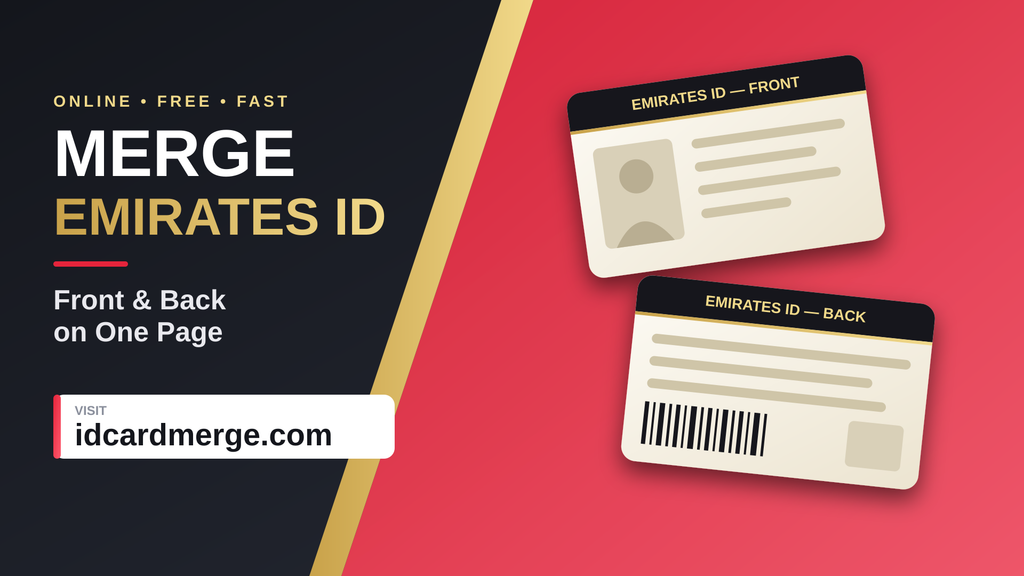
The Merge Emirates ID Front and Back tool helps you arrange images of both sides into one combined document. Add the front image, add the back image, check the result, and use the available download option to save your copy.
Whether you are preparing a personal record or responding to a request from an organisation, a neatly arranged document can make the process easier. Just remember to check the receiver’s instructions before sharing your Emirates ID copy.
When Do You Need Both Sides of an Emirates ID?
The Emirates ID is an identity document issued in the United Arab Emirates. Depending on the purpose, an organisation may ask you to provide images of the front and back.
Here are some situations where a combined copy may be useful:
| Situation | Why a combined copy may help |
|---|---|
| Bank paperwork | Keep both sides together when preparing a requested copy |
| Employment documents | Organise your ID images for an employer’s records |
| Rental applications | Prepare a single document when the property provider accepts it |
| School or university records | Keep both sides together for document submission |
| Online forms | Use one file if the upload system accepts a combined document |
| Personal records | Store both sides together for easier reference |
| Printing | Arrange both images on a page before printing |
These are examples, not official requirements. Each organisation may have its own rules about file formats, document quality, and whether it accepts a combined copy. Always confirm what is required before sending your ID.
How to Merge Emirates ID Front and Back
You can prepare your images in a few simple steps.
Step 1: Open the Emirates ID Tool
Visit IDCardMerge.com and open the Emirates ID merging tool. Follow the instructions shown on the tool page.
Step 2: Select the Front Image
Choose a clear photo or scan of the front of your Emirates ID. Make sure the full card is visible and the text is readable.
Step 3: Add the Back Image
Select the image of the reverse side. Check that you have added the correct image to each section.
Step 4: Check the Preview
If the tool provides a preview, inspect the arrangement carefully. Confirm that both sides are visible and that important details have not been cut off.
Step 5: Merge and Download
Use the available merge or download option to save the combined document. Open the saved file to check that it looks correct before printing or sharing it.
Helpful tip: Keep your original front and back images until you have checked the final document. If something looks wrong, you can correct the images and prepare another copy.
Emirates ID Merger Settings Explained
The available settings depend on the version of the tool. If these options appear on your IDCardMerge.com page, use them to prepare a suitable result.
| Setting | Purpose |
|---|---|
| Front image | Adds the front side of the Emirates ID |
| Back image | Adds the reverse side |
| Preview | Lets you review the arrangement before saving |
| Layout | Controls the placement of both images if multiple layouts are offered |
| Page size | Helps prepare the document for printing when supported |
| Image scale | Adjusts the displayed size if this option is available |
| Spacing | Changes the gap between images if supported |
| Download format | Lets you select from the file formats offered by the tool |
Do not assume that every option is available. Use the controls displayed on the actual tool page.
Which Layout Should You Choose?
The best layout depends on how you plan to use the file.
- For online submission: Follow the receiver’s instructions about file type, size, and image placement.
- For printing: Choose a layout that keeps both sides readable and fits the required paper.
- For personal records: Use a clear arrangement that makes it easy to identify the front and back.
If the tool offers more than one layout, check the preview before downloading.
Can You Print the Emirates ID at Its Original Size?
The final print size depends on the tool’s scaling settings and your printer configuration. A document that contains both sides does not automatically guarantee that the card images will print at their original physical dimensions.
If exact size matters, check whether the tool provides a verified size or scale option. Review the print preview and choose suitable printer settings before printing.
How to Take Clear Emirates ID Photos
A good result starts with clear original images. Blurry photos can make the text difficult to read, even when both sides are arranged correctly.
Follow these tips before uploading your images:
- Place the Emirates ID on a flat, clean surface.
- Use bright, even lighting to reduce shadows.
- Avoid direct flash if it creates glare on the card.
- Keep your phone directly above the card.
- Include all four edges in each photo.
- Make sure the front and back are not mixed up.
- Avoid filters that change the appearance of the document.
- Check that important details are readable before continuing.
If the text is blurry or part of the card is missing, take another photo instead of relying on the merged result to fix it.
Protect Your Emirates ID Information
Your Emirates ID contains personal information. Before uploading or sharing an image, make sure you understand how the website or service handles your files.
Here are some simple precautions:
- Use websites you trust.
- Check the privacy policy before using an online tool.
- Send your ID copy only to a verified person, company, or official portal.
- Confirm why the document is needed before sharing it.
- Avoid sending your card images to unknown people who contact you unexpectedly.
- Store downloaded files in a secure location.
- Remove copies from shared computers when you no longer need them.
IDCardMerge.com is an independent document-tool website, not a UAE government service. Do not assume that an online tool processes images only on your device unless its actual technical setup and privacy policy confirm this.
Common Emirates ID Merging Problems
The front or back image is missing
Check that you have selected both images and that each one appears in the correct upload section.
The images are in the wrong order
Return to the upload area and select the correct image for each side. If the tool offers a swap option, you can use it to correct the order.
The Emirates ID looks blurry
Use a clearer original photo or scan. Better lighting and a steady camera can improve readability.
Part of the card is cut off
Take another photo with the entire card visible. Avoid cropping the image too closely around the edges.
The combined document does not fit the page
Review the layout and page settings available in the tool. If you plan to print the document, check the print preview before using paper.
The download does not work
Check whether the file type is supported and try again. If the problem continues, refresh the page and follow the tool’s instructions.
Frequently Asked Questions
1. How can I merge Emirates ID front and back online?
Open the Emirates ID tool on IDCardMerge.com, add images of both sides, check the preview, and use the available download option to save the combined document.
2. Can I merge my Emirates ID for free?
Check the current tool page for its access conditions and any usage limits. Use the options displayed on the website to prepare your document.
3. Can I combine both sides of my Emirates ID into one PDF?
That depends on whether the tool supports PDF output. Check the available download formats on the tool page before starting.
4. Can I download the merged Emirates ID as JPG or PNG?
JPG and PNG are common image formats, but the formats available depend on the tool. Choose one of the formats actually offered by IDCardMerge.com.
5. Can I print both sides of my Emirates ID on one page?
You can prepare a combined layout for printing if the tool supports it. Check the final page and make sure both images are readable before printing.
6. Will the merged copy have the original card size?
Not necessarily. The output size depends on the image scale, page layout, and printer settings. Check the available settings if you need a specific physical size.
7. Is a merged Emirates ID accepted by every organisation?
No. Acceptance depends on the organisation and the reason for the request. Some organisations may require separate images, a particular file format, or another verification method.
8. Is it safe to upload my Emirates ID online?
Be careful because your ID contains personal information. Review the website’s privacy policy and confirm how it processes uploaded images before using the tool.
9. Is IDCardMerge.com an official Emirates ID service?
No. IDCardMerge.com is an independent document-tool website. It does not issue, renew, or officially verify Emirates IDs.
Final Words
Combining the front and back of your Emirates ID can make document preparation easier when a single file is accepted. Start with clear images, check the final arrangement, and follow the receiver’s instructions before submitting your copy.
Use the Merge Emirates ID Front and Back tool on IDCardMerge.com to prepare an organised document. Always protect your personal information and use official UAE channels for government identity services.