
Merge Iqama card front and back online free. Combine both sides on one page and download a neat copy for printing or document submission.
Need to submit a copy of your Saudi Iqama but have the front and back saved as separate photos? Many banks, employers, and online application forms ask for both sides of your residence ID. Sending two separate images can be inconvenient, especially when the upload form accepts only one file.
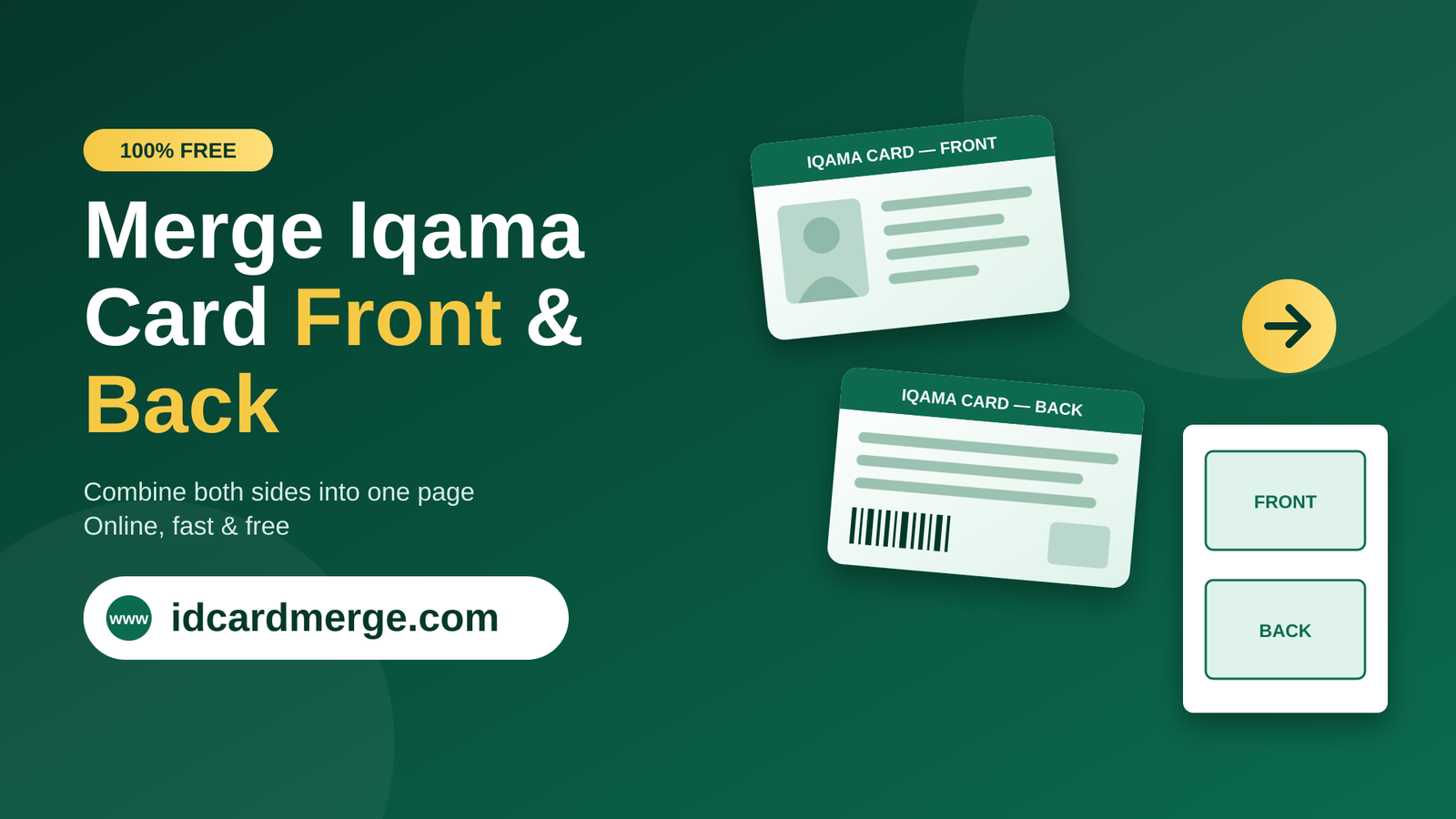
With the Merge Iqama Card tool on IDCardMerge.com, you can combine the front and back of your Iqama on one page. Add both photos, check their position, select a suitable layout, and download the finished document in a supported format. You do not need to install an app or create an account.
The tool makes it easier to prepare a clear copy for printing or document submission. Before sending the file, check that both sides are readable and that the receiving organization accepts your chosen format.
Quick steps:
- Upload your Iqama front photo.
- Add the back photo.
- Check the preview and adjust the layout.
- Choose PDF, JPG, or PNG if supported.
- Merge and download your document.
When Do You Need a Merged Iqama Card Copy?
An Iqama is a residence identification document used by eligible foreign residents in Saudi Arabia. Depending on the service and the organization’s requirements, you may be asked to provide a copy of your residence ID.
If you have separate photographs of both sides, combining them into one file can make the document easier to organize and submit.
| Situation | What You May Need | Suggested Format |
|---|---|---|
| Bank account application | A readable copy of the requested ID details | PDF, if accepted |
| Employment paperwork | Both sides for the employer’s records | PDF or requested format |
| Online registration | An image or document accepted by the form | JPG, PNG, or PDF |
| Insurance application | A clear copy matching the insurer’s instructions | Requested format |
| Personal document records | Both sides saved together |
Requirements vary between organizations. Always follow the instructions provided by the bank, employer, government service, or other recipient.
How to Merge Iqama Card Front and Back
Combining both sides is straightforward when you have clear photographs ready on your device.
Step 1: Open the Merge Iqama Card Tool
- Visit IDCardMerge.com and open the Iqama merging tool. Use a supported browser on your phone, tablet, or computer.
Step 2: Upload the Front Photo
- Select the image showing the front of your Iqama. Make sure the photo is clear and includes the relevant card details. Avoid uploading an image with glare, shadows, or cut-off edges.
Step 3: Upload the Back Photo
- Choose the second image showing the back of your Iqama. Check that both photos belong to the same card and that the front and back are placed in the correct positions.
- If the tool provides a swap option, you can use it to correct the order without uploading both images again.
Step 4: Check the Preview
- Review the combined page before downloading. Confirm that your name, identification number, expiry details, and other required information are readable wherever they appear.
Step 5: Choose the Layout and File Format
- Select a stacked layout to place the front above the back, or choose side by side if that arrangement suits your needs. If available, adjust the paper size, spacing, or card scale.
- Choose PDF for a printable document, JPG for a commonly accepted image file, or PNG when you want to preserve clear text and edges. The available options depend on the tool.
Step 6: Merge and Download
- Click the merge and download button. Save the completed file to your device and open it to make sure both sides appear correctly.
- Your file is ready to submit once you have confirmed that it meets the recipient’s requirements.
What Settings Can You Use for a Merged Iqama Card?
The available settings depend on the features implemented in the tool. These are common options to look for when preparing an Iqama copy.
| Setting | Purpose | Suggested Use |
|---|---|---|
| Paper size | Controls the output page dimensions | Choose A4 when a full printable page is required |
| Card scale | Changes the displayed card size, if available | Use actual size when printing a true-size copy |
| Layout | Places the front and back vertically or horizontally | Stacked is often easy to read |
| Spacing | Adds a gap between the two sides | Use a small or medium gap if needed |
| Border | Adds an outline around each image, if available | Useful for distinguishing the two sides |
| Watermark | Adds a purpose note, if supported | Use only when permitted and keep details readable |
| Download format | Selects the output file type | Follow the recipient’s instructions |
Only use settings that actually appear on the tool page. A particular organization may require a specific page size, image format, or file-size limit.
How to Print Your Merged Iqama Card
If you need a paper copy, check whether the recipient wants the card displayed at its actual dimensions or simply wants a readable copy on a page.
For a true-size print, follow these steps if the tool supports accurate card dimensions:
- Select the actual-size card setting.
- Download the file in a suitable format, such as PDF.
- Open the print dialog on your computer.
- Select Actual Size or 100% if exact dimensions are required.
- Avoid automatic page scaling when the recipient specifically requests the original card size.
- Check the printed result with a ruler if exact dimensions matter.
If the receiving organization requests a full-page copy instead, choose a layout that makes both sides easy to read. Always follow its instructions rather than assuming that every office requires the same print size.
Tips for Taking Clear Iqama Photos
A good merged document starts with clear original images. Follow these tips before uploading your card.
- Place the Iqama on a flat surface.
- Use bright, even lighting to make the text readable.
- Avoid direct flash if it creates glare on the card.
- Hold your phone directly above the card.
- Include all four corners in each photograph.
- Keep the camera steady to avoid blurry text.
- Photograph the front and back separately in good light.
- Check the images before merging them.
If the card details cannot be read in the original photographs, retake them before creating the final file.
Keep Your Iqama Information Safe
Your Iqama contains personal information that should not be shared unnecessarily. Preparing a merged copy can make document submission easier, but you should still take care when handling the finished file.
- Send it only to the intended recipient. Check the official website or email address before submitting your document.
- Use a watermark when appropriate. If permitted, a note such as “For employment verification only” may help show the intended purpose.
- Avoid public sharing. Do not post your residence ID in public groups or on social media.
- Be careful with shared devices. Remove downloaded copies when you finish using a public or shared computer.
- Keep an original copy. Store your own document securely so you can prepare another copy when needed.
How Does the Tool Handle Your Photos?
File handling depends on the actual implementation of the tool. If the Iqama merger processes images entirely in your browser, the photos do not need to be uploaded to a remote server for merging. Check IDCardMerge.com’s privacy information and the specific tool’s behavior before relying on this claim.
IDCardMerge.com is an independent document-formatting service. It does not issue, renew, or verify Iqamas.
Common Problems and How to Fix Them
| Problem | Possible Reason | What to Do |
|---|---|---|
| One side is missing | Only one image was selected | Upload both the front and back |
| The sides appear in the wrong order | Images were placed incorrectly | Swap the images if the option is available |
| Text looks blurry | The original photo lacks detail | Retake the photo in better lighting |
| The file is too large | The selected format or image dimensions produce a large file | Try JPG or reduce the image size if permitted |
| The printed card is too small | The print settings resized the page | Check the scale and print at 100% when required |
| The download does not start | A browser or processing issue may have occurred | Refresh the page and try again |
About IDCardMerge.com
IDCardMerge.com provides online tools designed to help users arrange and prepare document images for personal use and permitted submissions. The Merge Iqama Card tool is intended for formatting existing images, not for changing official information or creating a replacement residence document.
For official information about Saudi residence services, renewal, or eligibility, consult the relevant Saudi government service. Do not rely on a document-merging tool for immigration or legal advice.
FAQs About Merge Iqama Card Online
Which format is best for an Iqama copy?
PDF is often useful for printing and document submission. JPG can be convenient for online forms with image-size limits, while PNG can preserve clear text and edges. Use whichever format the receiving organization accepts.
Can I use the tool on my mobile phone?
Yes, if your phone’s browser supports the tool. You can select the front and back photos from your device and download the completed file.
Is IDCardMerge.com an official Saudi government website?
No. IDCardMerge.com is an independent document-formatting website and is not a Saudi government service. It does not issue, renew, or officially verify residence documents.
Can I merge another person’s Iqama?
You may be able to combine another person’s document images when you have permission and a legitimate reason to handle them. Protect their personal information and share the file only with the intended recipient.
Can I print my Iqama at its actual card size?
If the tool supports actual-size card dimensions, select that setting and print at 100% scale. Check the printed dimensions before relying on them for a requirement that specifies exact measurements.
Will merging my Iqama change its official information?
The tool should be used to arrange existing images, not to alter official details. Always check that the downloaded copy accurately represents your original document.