
Need to submit your child’s NADRA B-Form for school admission, an exam, or another application? Sometimes, you have separate photos of the document, but the website or office asks you to upload everything in one file. Managing two images can make the process confusing.
Our free Merge B-Form tool helps you combine two B-Form photos onto one page. You can arrange the images vertically or side by side and save the result as a PDF, JPG, or PNG file. There is no need to install software or create an account.
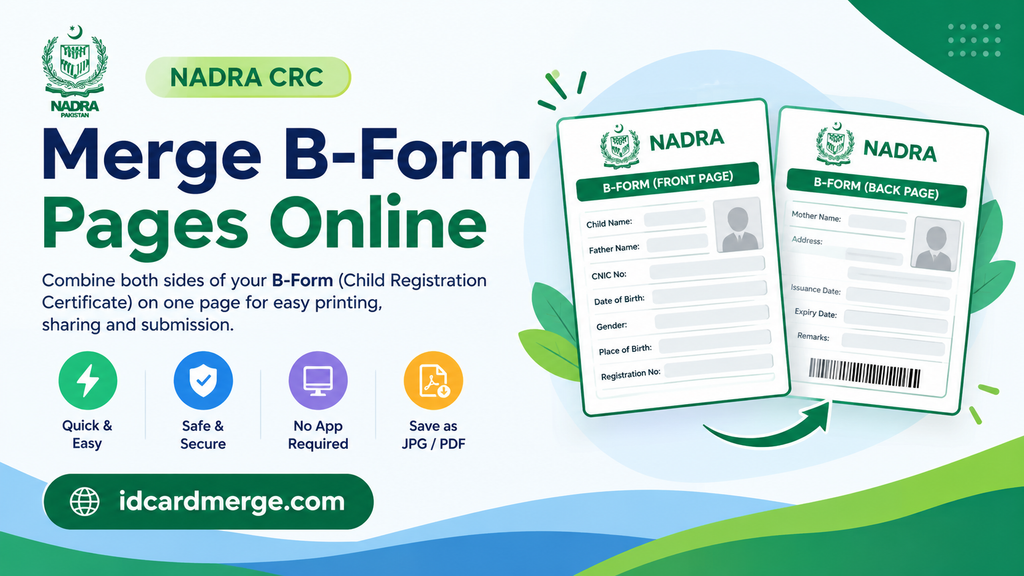
The tool works directly in your browser, so your photos stay on your device while you use it.
Here is how it works:
- Select the first B-Form photo.
- Add the second photo and check the preview.
- Choose your preferred layout and file format.
- Merge the images and download your file.
What Is a B-Form and Why Might You Need a Copy?
A B-Form, officially known as a Child Registration Certificate (CRC), is issued by NADRA in Pakistan to register a child. Parents may need it when completing school admission forms, examination registrations, passport applications, or other processes that request proof of a child’s registration.
Sometimes, you may have the document saved as two separate photographs. One image may show the upper section, while another shows the remaining section. If an online application accepts only one attachment, combining the images can make the document easier to submit.
Always check the receiving organization’s instructions before uploading your merged copy. Use the current document and make sure all required details remain visible.
Why Merge B-Form Photos Instead of Using a Card Frame?
A B-Form is a paper document, not a standard plastic identity card. Its dimensions and proportions can differ depending on the document version and how you photograph or scan it.
For this reason, a flexible layout is often more useful than a fixed ID-card frame. The photos can keep their original proportions instead of being forced into a small card-shaped box.
With the appropriate layout settings, you can arrange the two images on one page and adjust the result to suit your needs.
If your tool offers a fit-to-photo option, it can help use the available page space while preserving each image’s proportions. Always check the preview before downloading to ensure that no important information is missing.
How to Merge B-Form Pages Online
You can combine your B-Form photos in a few simple steps.
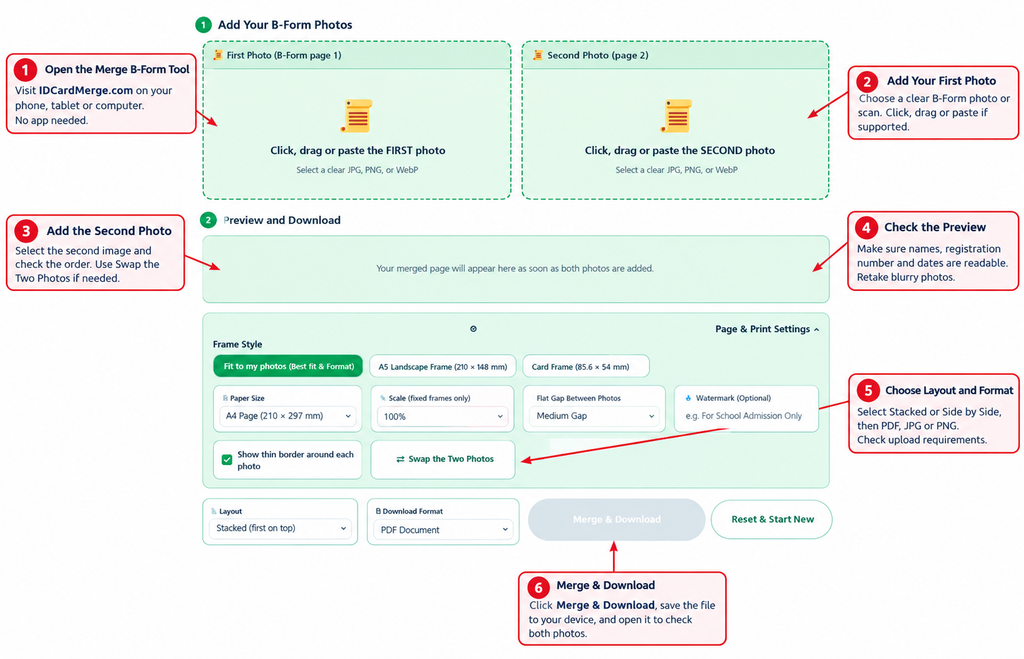
Step 1: Open the Merge B-Form Tool
Open the B-Form merging tool on IDCardMerge.com. You can use it from a supported mobile phone, tablet, or computer without installing a separate application.
Step 2: Add Your First Photo
Select the first image from your device. Choose a clear photo or scan that shows the document’s details. Depending on the tool’s available features, you may also be able to drag and drop an image into the upload area.
Step 3: Add the Second Photo
Upload the second B-Form image into the next box. Check that both images belong to the correct document and are in the intended order.
If the photos appear in reverse order, use the swap option if it is available.
Step 4: Check the Preview
Look carefully at the combined page. Make sure the child’s name, registration number, date of birth, and other required details are readable. If an image is blurry or too dark, take a clearer photo before continuing.
Step 5: Choose the Layout and Format
Select a stacked layout to place one image above the other, or choose side by side if that arrangement suits your document. Select PDF for printing and sharing, JPG for a commonly accepted image format, or PNG when you want to preserve clear text.
Check the receiving website’s file-size and format requirements before choosing your download option.
Step 6: Merge and Download
Click the merge or download button provided by the tool. Save the completed file to your device and open it once to confirm that both photos appear correctly.
Your file is now ready to use, subject to the requirements of the organization requesting the B-Form.
What Can You Change When Merging a B-Form?
Available settings depend on the features provided by the tool. The following table explains common options that may help you prepare your document.
| Feature | What It Does | When to Use It |
|---|---|---|
| Photo upload | Adds the B-Form images to the tool | When you have two separate photos |
| Fit to page | Adjusts images to the available page space while preserving proportions | When you want both images to fit neatly |
| Stacked layout | Places one image above the other | Best for tall or portrait-oriented photos |
| Side-by-side layout | Places the images next to each other | Useful for wide images or landscape layouts |
| Paper size | Sets the output page dimensions, if supported | When a school or office requests a particular page size |
| Image spacing | Changes the gap between photos, if supported | When you want a little space between the images |
| Border | Adds an outline around images, if supported | When you want to distinguish the two sections |
| Watermark | Adds a purpose note, if supported | For example, “For school admission only” |
| Download format | Saves the result as PDF, JPG, or PNG, if supported | Choose the format accepted by the receiving portal |
A Simple Example of Merging a B-Form
Imagine that a school asks you to upload your child’s B-Form during online admission. You have taken two photos of the document, but the admission website allows only one attachment.
First, open the Merge B-Form tool and select both photos. Check the preview to confirm that the images are in the right order. If the upper and lower sections are reversed, correct their order before downloading.
Next, select a suitable layout. A stacked arrangement may work well when the photos are tall, while a side-by-side layout can be useful for wider images. Choose PDF if you need a printable page, or select JPG or PNG if the school portal accepts image files.
Finally, merge the photos and open the saved file. Check that all important information is visible and readable before submitting it.
If the file is too large for the upload limit, you may need to reduce its size using a suitable image compression tool.
Stacked or Side by Side: Which Layout Is Better?
Stacked layout: This places the first photo at the top and the second underneath it. It is often a practical choice when the two images show different sections of a paper document.
Side-by-side layout: This places the first photo on the left and the second on the right. It can work well when the images are wide or when a landscape page is more suitable.
There is no single layout that works best for every B-Form. Choose the arrangement that makes the information easiest to read and meets the receiving organization’s requirements.
Tips for Taking Clear B-Form Photos
The final result depends partly on the quality of the original photographs. Follow these simple tips before uploading your images.
- Place the document on a flat, clean surface.
- Take the photo from directly above the paper.
- Use enough light to make the printed text easy to read.
- Avoid shadows from your hand, phone, or nearby objects.
- Keep all document edges inside the photograph.
- Hold your phone steady to avoid blurry text.
- Check that the two photos overlap correctly or show the intended sections without missing information.
- Use a scanner or scanning app when available for a cleaner result.
Protecting Your Child’s B-Form Information
A B-Form contains personal information about a child and their family. Handle the document carefully whenever you prepare a copy for an application.
Only share the file with the school, office, or organization that genuinely requires it. Before uploading, check that you are using the correct website or official email address.
If the receiving organization permits watermarks, you may add a short purpose note such as “For school admission only” to help identify the intended use. Do not place a watermark over names, numbers, or other information that must remain readable.
Avoid saving sensitive documents on public computers. If you use a shared device, remove downloaded copies when you have finished and check whether they remain in the recycle bin or downloads folder.
Final Checklist Before Downloading
Before submitting your merged B-Form, take a moment to check the following:
- Both photos are included.
- The images are in the correct order.
- Names, numbers, and dates are readable.
- No important part of the document is cut off.
- The chosen layout is suitable for the document.
- The file format matches the application requirements.
- The file opens correctly on your device.
- You are sending the document to the intended recipient.
Frequently Asked Questions About Merge B-Form
Is the Merge B-Form tool free?
The tool is intended to help users combine B-Form images without needing paid desktop software. Check the actual tool page for any current usage limits or available features.
Can I merge two B-Form photos into one PDF?
Yes, if the tool provides PDF export. Upload both photos, check the layout, and select PDF as the output format before downloading.
Why does my merged B-Form look blurry?
The original photos may be blurry, poorly lit, or too low in resolution. Merging images cannot restore details that were not captured in the original photographs. Retake the photos in better lighting and check the preview again.
Which format should I choose: PDF, JPG, or PNG?
PDF is useful for printing and submitting a document as a page. JPG is widely supported and can produce a smaller image file. PNG can preserve sharp text and edges, although the file may be larger. Follow the receiving website’s instructions.