
More Free ID Card Tools
Explore free online tools to merge ID cards, resize photos, and convert or prepare your documents with ease.
🇮🇳 Indian ID Card Utilities
⚡ Photo & Image Tools
⭐ Free Online ID Card & Image Tools — Simple and Mobile Friendly
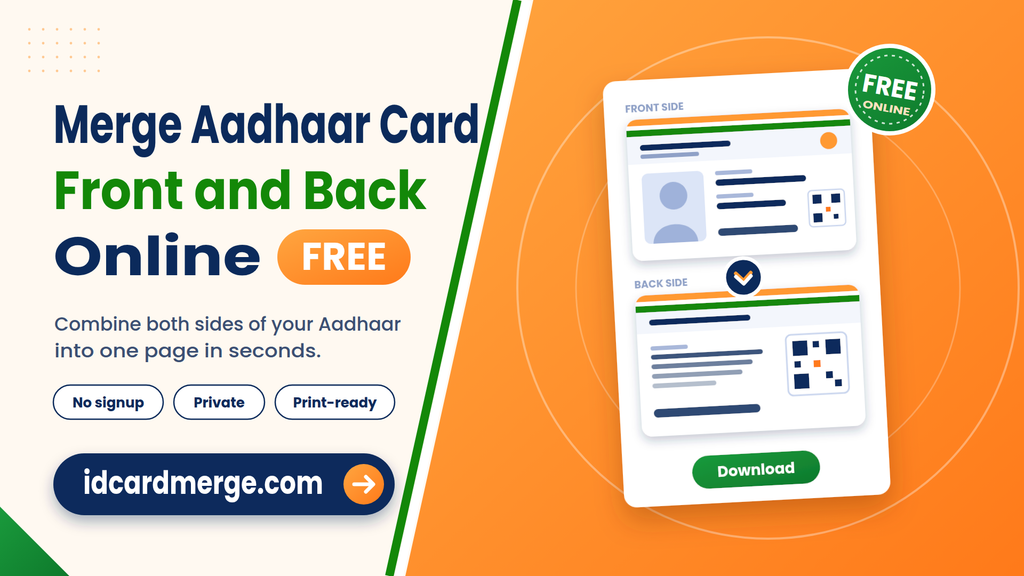
Have you ever needed to upload your Aadhaar card but found that the website accepts only one file? Your Aadhaar front and back are saved as separate images, and sending them individually can make the process confusing.
The solution is simple: combine both sides into one image or document. With an online Aadhaar merging tool, you can arrange the front and back together without needing complicated photo-editing software.
Whether you are preparing documents for an application, office paperwork, or printing, Merge Aadhaar Card Front and Back helps you organize both sides into a single, convenient file.
You can prepare your images, check the final layout, and choose a suitable output format according to your needs. The important thing is to keep the information clear and follow the receiving organization’s document requirements.
What Does It Mean to Merge Aadhaar Card Front and Back?
Merging an Aadhaar card’s front and back means combining the two sides into one image or document instead of keeping them as separate files.
The front side generally contains your photograph and basic identity details, while the reverse side may contain your address and other printed information. Putting both sides together makes it easier to view, print, and submit the complete card.
Depending on the tool’s available features, you may arrange the front above the back or place both sides next to each other.
Why Do People Merge Both Sides of Aadhaar?
Combining both sides can be useful in several situations:
- Online applications: Some forms accept only one attachment for identity documents.
- Office paperwork: A combined file can be easier to organize and share.
- Printing: Both sides can be arranged together on a single page.
- Digital records: Keeping the images together makes the document easier to find.
- Email attachments: You can send one combined file instead of attaching two separate pictures.
Always check the recipient’s instructions before submitting your Aadhaar. Some organizations may require a particular file format, page layout, or document type.
How to Merge Aadhaar Card Front and Back Online
Combining both sides is straightforward when you have clear images and an appropriate merging tool.
Step 1: Prepare Your Aadhaar Images
- Save clear images or scans of the front and back of your Aadhaar card on your mobile phone or computer.
- Make sure the complete card is visible, the text is readable, and neither image has been cropped too closely.
Step 2: Open the Aadhaar Merging Tool
- Visit idcardmerge.com and open the relevant image-merging tool.
- Choose the tool that supports combining two images into one output. Check the available upload options and supported file formats before proceeding.
Step 3: Upload the Front Side
- Select the image showing the front of your Aadhaar card and add it to the appropriate upload area.
- Double-check that you have selected the correct image, especially if several similar files are saved on your device.
Step 4: Upload the Back Side
- Add the image of the reverse side. If the tool has separate FRONT and BACK upload areas, place each image in its matching field.
- If both sides appear in the wrong order, use a swap option if one is available rather than uploading the files again.
Step 5: Check the Layout and Preview
- Review the combined result before downloading. Confirm that both sides are visible, correctly oriented, and easy to read.
- If the tool offers page settings, adjust the paper size, card dimensions, spacing, or layout to suit your requirements.
Step 6: Choose a Format and Download
- Select JPG, PNG, or PDF if the tool supports your preferred format.
- Save the finished file to your device and open it once more to check the result. Your combined Aadhaar copy is then ready to use wherever that format is accepted.
What Can You Change in Page Settings?
Some merging tools offer additional settings to help you prepare a document for printing or online submission. Available options vary by tool.
- Card type: Choose a matching card frame if the option is available.
- Paper size: Select a supported size, such as A4 or A5, when necessary.
- Card size: Use the actual card dimensions or another permitted size according to your purpose.
- Gap between sides: Add space between the front and back to make each side easier to distinguish.
- Watermark: Add a purpose-specific note if watermarking is supported.
- Cut border: Use a trimming guide if the tool provides one.
- Merge layout: Arrange the two sides vertically or horizontally when supported.
For a quick online upload, you may not need to change anything. The default settings are often sufficient if the output is clear and meets the receiving website’s requirements.
Why Correct Aadhaar Card Size Matters
The standard ID-1 card size is 85.6 × 54 mm, which is approximately the size of a typical bank card. This is a useful reference when preparing a physical card-sized print.
Correct proportions help prevent the card image from appearing stretched or distorted. However, the final printed dimensions also depend on the tool’s export settings and your printer’s scaling options.
If you need a true-size print, choose the appropriate card dimensions if available and check the print scale before printing. Avoid automatically fitting the image to the entire sheet if that would enlarge the card beyond the intended size.
For digital submissions, follow the organization’s instructions instead. A website may require a particular image dimension or a document that displays both sides on a full page.
Tips for Better Aadhaar Images
A clear result starts with good source images. Follow these practical tips before merging your Aadhaar front and back.
Use Clear Images
- Choose sharp photos or scans so the printed details remain readable. If the original image is blurry, take another picture when possible.
Avoid Glare and Shadows
- Place the card on a flat surface with even lighting. Avoid direct flash if it reflects off the card and hides important details.
Keep All Four Corners Visible
- Capture the entire card without cutting off its edges. Leave enough space around it so you can adjust the layout without losing information.
Keep Both Sides Straight
- Photograph each side from directly above to reduce perspective distortion. Rotate the images if necessary so the text reads in the correct direction.
Check the Final Preview
- Zoom in and check the photograph, printed text, and other visible details before downloading. Make sure the two sides are not stretched or accidentally cropped.
Avoid Excessive Compression
- Smaller files can be convenient for online uploads, but too much compression can make text difficult to read. Follow the upload size limit while preserving sufficient image quality.
Add a Watermark Before Sharing
A purpose-specific watermark can help show why an Aadhaar copy is being shared. For example, you might use wording such as “For rental application only” or “For office verification only,” where appropriate.
If your tool supports watermarking, enter a short message and check how it appears across the combined images.
Keep these points in mind:
- Use a clear, relevant message.
- Do not cover important details or make the card unreadable.
- Check whether the recipient accepts watermarked copies.
- Avoid including unnecessary personal information in the watermark.
A watermark is a precaution, not a guarantee against misuse. Only share your Aadhaar with trusted recipients and provide the information they actually need.
Where appropriate, consider using an Aadhaar option permitted by the receiving organization, such as a Masked Aadhaar copy, which hides the first eight digits of the Aadhaar number. Follow the applicable requirements before preparing or sharing the document.
Is It Safe to Merge Aadhaar Card Images Online?
Aadhaar contains personal information, so privacy should be an important consideration when using an online tool.
Before selecting a website, review its privacy policy and check how it processes uploaded images. Some tools process files locally in your browser, while others send them to a server. Do not assume a tool uses local processing unless that has been verified.
For better privacy:
- Use a trusted website.
- Check whether the images are uploaded or processed locally.
- Avoid using public or shared computers for sensitive documents.
- Do not send the merged file to unnecessary recipients.
- Remove unwanted copies from shared devices when finished.
A combined image is convenient, but it should still be handled as a sensitive identity document.
Which File Format Should You Choose: JPG, PNG, or PDF?
The right format depends on the website or organization receiving your document and how you intend to use it.
JPG or JPEG
- JPG is a practical choice for online forms that accept image uploads. It often produces a smaller file, making it useful when the website has a strict size limit.
- Choose JPG when you need a convenient image for an application or email. Avoid excessive compression so the printed details remain readable.
PNG
- PNG preserves image data without the lossy compression used by JPG. It can be useful when maintaining sharp text and edges is important, although the file may be larger.
- Choose PNG if the receiving website accepts it and the resulting file size is suitable.
- PDF is often convenient for printing, emailing, or submitting documents through systems that require PDF files.
- Choose PDF when the recipient specifically requests a document rather than a standalone image. Remember that PDF quality and page dimensions depend on the export settings and the original images.
Quick Comparison
| Feature | JPG | PNG | |
|---|---|---|---|
| File type | Image | Image | Document |
| Typical size | Often smaller | Can be larger | Varies |
| Image compression | Lossy | Lossless | Depends on export settings |
| Best suited for | Image uploads | Detailed image uploads | Document submission and printing |
| Printing | Yes | Yes | Yes |
Which format should you choose? Check the receiving website’s requirements first. If all three formats are accepted, select the one that offers the best balance of image clarity, file size, and convenience.
Final Thoughts
Combining the front and back of your Aadhaar card into one file can make document preparation simpler. It helps you keep both sides together for printing, email attachments, and online forms that accept a single image or document.
Start with clear images, choose a suitable layout, and select the output format required by the recipient. Before sharing the final file, check that both sides are readable and take appropriate steps to protect your personal information.
With a suitable merging tool, preparing a neat, organized Aadhaar copy can be a straightforward task without complicated editing software.
Frequently Asked Questions About Merge Aadhaar
Can I merge Aadhaar card front and back online for free?
You can use an online merging tool to combine both sides into one file. Check the tool page for its current pricing, supported formats, and any usage limits.
Can I merge both sides of Aadhaar on my mobile phone?
Yes. You can select the front and back images from your phone and use a compatible browser-based tool. Review the preview before downloading the combined file.
Can I combine Aadhaar front and back into one PDF?
Yes, if the tool supports PDF export. Add both images, arrange them on the page, and save the result as a PDF. Confirm that the receiving organization accepts the format.
Which image formats can I upload?
Supported formats depend on the tool. Many image-merging tools accept JPG and PNG, while some also support WebP. Check the upload instructions before selecting your files.
Why is my merged Aadhaar image blurry?
The original images may be blurry, poorly lit, or too small. Excessive compression can also reduce clarity. Try using clearer source images and avoid unnecessary resizing.
Can I place Aadhaar front and back side by side?
Yes, if the tool offers a horizontal layout. Otherwise, you can place the front above the back in a vertical arrangement.
Is it safe to merge Aadhaar images online?
Safety depends on the website’s file-processing and privacy practices. Check whether your images are processed locally or uploaded to a server, and use a trusted service.
Can I merge a Masked Aadhaar card?
You can combine images of a Masked Aadhaar if the tool supports their file formats. A Masked Aadhaar hides the first eight digits of the Aadhaar number. Make sure the recipient accepts this version before submitting it.