
Combine Driving Licence Front and Back in one file online. Learn how to merge both sides into a clear JPG or PDF using idcardmerge.com.
Driving Licence Front and Back – Combine Both Sides in One File Online
A driving licence has two sides, and both may contain information you need when submitting documents online. The front usually displays your photo, name, licence number, and other identifying details. The back may include driving categories, restrictions, or additional information, depending on the licence design and issuing country.
The trouble begins when a website, application, or office asks for both sides but gives you only one place to upload a file. You might try sending two separate photographs, arranging them in a Word document, or opening an image editor just to put them together. For such a simple task, that is more work than necessary.
The Driving Licence Front and Back tool on idcardmerge.com helps you prepare a combined copy without manually arranging the images in a separate editor. Add the front and back photographs, choose an appropriate layout if the tool provides one, and save the result in a supported format.
Whether you are preparing documents for an application, organizing personal records, or sharing a licence copy with an organization, combining both sides can make the process more convenient.
How to Combine Driving Licence Front and Back
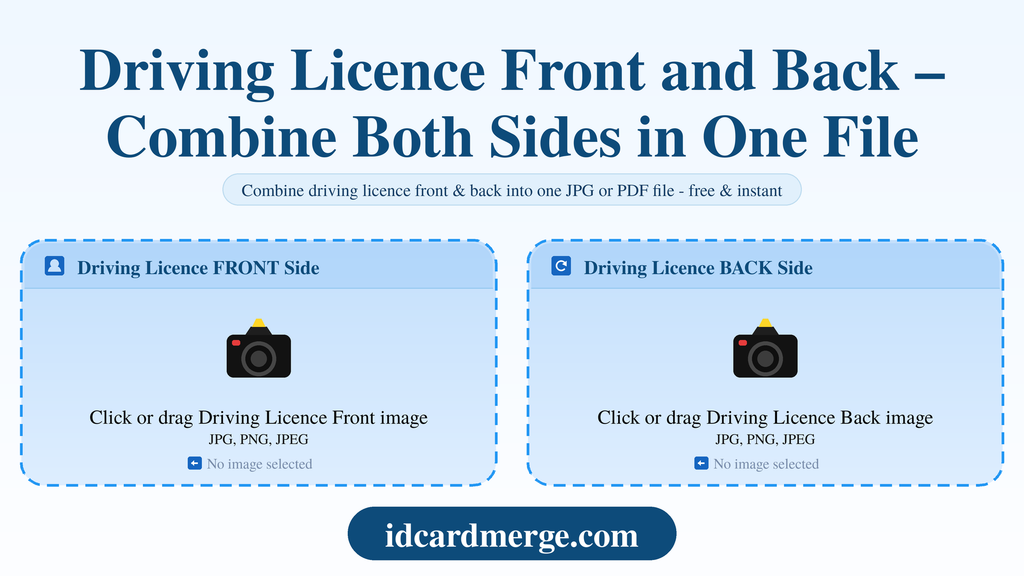
You only need clear photographs or scans of both sides to get started. Follow these steps to prepare your combined file.
Step 1: Upload the front side. Open the relevant merging tool on idcardmerge.com and select a photo or scan of the front of your driving licence. Make sure the complete card is visible and the text is readable. A clear photograph taken with your phone is usually sufficient if the lighting and focus are good.
Step 2: Add the back side. Select the photograph of the reverse side of the same licence. Double-check that you have chosen the correct image and that it is not upside down. If the text is hidden by glare or the photo is blurry, take a clearer picture before continuing.
Step 3: Choose your layout. If layout options are available, select Vertical to place the front above the back or Horizontal to put both sides next to each other. Choose the arrangement that suits your needs and follows the receiving organization’s instructions.
Step 4: Preview both sides. Check that the front and back are correctly positioned, that the entire licence is visible, and that no important details have been cropped. If the images look uneven or difficult to read, correct them before downloading.
Step 5: Download your combined file. Select an available output format, such as JPG or PDF, if supported. Save the finished file to your device and open it once to make sure both sides appear correctly.
Your two separate images are now combined into one convenient file, ready to be used wherever the recipient accepts this format.
Why People Need Their Driving Licence Front and Back Together
Keeping both sides in one file can make everyday paperwork easier. Instead of searching for separate photos every time you need to share your licence, you can prepare a combined copy for situations where it is accepted.
- Renting a car or bike. A rental company may ask to review both sides of your driving licence before completing a booking. A combined file can make submission more convenient when its system accepts one attachment.
- Submitting insurance paperwork. An insurer may request a licence copy as part of its documentation process. Keeping both sides together can make the file easier to organize and review.
- Applying for driving-related jobs. Employers recruiting drivers may request licence details during their document checks. A combined copy can simplify preparation when the employer permits it.
- Registering with delivery or ride-hailing platforms. Driver registration may involve uploading licence images for verification. Check whether the platform accepts a combined file or requires separate photographs.
- Completing online applications. When a form provides only one attachment field, combining both sides can save you from managing multiple image files.
- Organizing personal documents. A single file containing both sides is easier to store and find than two separate photographs, particularly when you keep several digital documents on your device.
- Printing a document copy. Combining the images can simplify printing when you need both sides together on a page or in a document.
Requirements vary between organizations. Some accept a single merged image or PDF, while others require separate files or an unaltered copy. Always follow the instructions provided by the recipient.
Vertical or Horizontal — Which Layout Should You Choose?
The right layout depends on how you intend to use the combined file. Both options can work well as long as the information remains clear and readable.
Vertical layout (front above, back below) places the two sides one underneath the other. It works well for page-style documents, printing, and situations where the recipient specifically requests both sides on one page. It also gives the reader a simple top-to-bottom view of the licence.
Horizontal layout (front beside the back) positions the images next to each other. This arrangement can be convenient when someone needs to inspect both sides on a computer screen or when you want a wider image for digital sharing.
If the recipient has specified a layout, follow those instructions. Otherwise, choose whichever arrangement makes the document easiest to read. Avoid stretching the photos or reducing their size so much that small text becomes difficult to see.
JPG, PNG, or PDF — Which Format Is Best?
Once you combine both sides, the next step is choosing the right file format. The best option depends on what the receiving website accepts and how you plan to use the document.
JPG: A Practical Choice for Image Uploads
JPG is widely supported by mobile phones, computers, websites, and email services. It is often useful when you need a compact image that can be uploaded or shared easily.
The drawback is that JPG uses lossy compression. Repeated editing and saving can reduce image quality, so begin with a clear original photograph and avoid unnecessary conversions.
PNG: Useful for Preserving Image Details
PNG uses lossless compression, which preserves image data when saving the file. It can be a suitable option when clarity matters and the resulting file size is acceptable.
However, PNG files can be larger than comparable JPG images. Check the file-size limit before choosing this format for an online application.
PDF: Convenient for Documents
PDF is useful when an organization asks for a document rather than an image. It can keep both sides together in a format that is convenient to save, print, and share.
Before submitting a PDF, open it and check that both sides appear in the correct order. If the recipient requires a single-page document, confirm that the finished file meets that requirement.
Which format should you use? Choose JPG when the recipient accepts an image, PNG when preserving image detail is a priority, or PDF when a document format is requested. The receiving organization’s instructions should always take priority.
Why Use an Online Driving Licence Merging Tool?
Putting two photographs together should not require learning a complicated photo-editing application. An online merging tool offers a more direct way to prepare the file you need.
- Less manual editing. You can avoid creating a blank canvas, resizing two photographs individually, and arranging them by hand in a separate application.
- Both sides in one place. A merged copy keeps the front and back together, making the document easier to organize and share when one attachment is accepted.
- A straightforward process. The task involves selecting the images, choosing from the available layout options, and saving the result.
- Convenient document preparation. Once you have a clear combined copy, you can store it for future use rather than repeatedly arranging the same photographs.
- Flexible output options. If multiple download formats are available, you can choose the one that matches the recipient’s requirements.
What About Privacy and Security?
A driving licence contains personal information, so you should take care when using an online document tool. Before uploading your photographs, review the website’s privacy policy and check how files are processed, whether they are sent to a server, and whether they are retained.
Do not assume an online tool processes everything locally or automatically deletes uploaded files unless its published privacy information confirms this. Avoid using unfamiliar websites for sensitive documents, and share your completed file only with a legitimate recipient who needs it.
Remember that merging images creates a combined copy. It does not renew, validate, or officially change your driving licence.
A Few Tips Before You Upload
A clear result starts with good photographs. Keep these simple tips in mind before combining your driving licence images.
- Use even lighting. Take both photos in daylight or under soft indoor lighting. Direct flash can create reflections on a laminated card and hide printed information.
- Keep the licence flat. Place it on a plain surface and photograph it from directly above. This helps prevent tilted edges and distorted proportions.
- Use clear original images. A sharp photo or scan is usually better than a screenshot that has been compressed several times.
- Show all four edges. Keep the complete licence visible so no important information is cut off during merging.
- Check the orientation. Make sure both photos are upright and that the front and back belong to the same licence.
- Avoid excessive compression. If the file is too large for an online form, reduce its size carefully without making the smaller text unreadable.
- Inspect the finished file. Open the downloaded image or PDF and zoom in to check numbers, dates, and other important details.
- Follow the recipient’s instructions. Some organizations require a particular format, image size, or unaltered copy.
These small checks can help prevent problems when you upload or share your combined document.
FAQs About Driving licence Front and Back
How can I combine the front and back of my driving licence online?
Open a compatible merging tool, upload the front and back photographs, select a suitable layout if available, and download the combined file in a supported format. Check the finished result before submitting it.
Can I put both sides of my driving licence on one page?
Yes, if the tool supports a suitable layout or one-page PDF export. Make sure both sides fit comfortably on the page and that the information remains readable.
Can I combine driving licence images on my mobile phone?
Yes, if the online tool supports your mobile browser. Select the two photographs from your phone, complete the available merging steps, and save the resulting file to your device.
What image formats can I use for my driving licence?
JPG, JPEG, and PNG are common image formats for this task. The formats accepted by the tool may vary, so check its upload instructions before choosing your files.
Will merging affect the original driving licence?
No. The process combines copies of the images you provide. It does not renew, replace, validate, or officially modify the licence issued by the relevant authority.
Why is my combined driving licence difficult to read?
The original photographs may be blurry, poorly lit, distorted, or heavily compressed. Take clearer photos in even lighting, keep the licence flat, and avoid reducing the image quality too much.
Can I use a combined driving licence file for official applications?
Only when the receiving organization accepts a merged image or PDF. Some applications require separate images or an unaltered copy, so check their document requirements before uploading the file.
Is it safe to use an online tool for my driving licence images?
Safety depends on the tool’s privacy and security practices. Review the privacy policy before uploading personal information and use a service that clearly explains how uploaded files are handled.
Can I combine a scanned licence with a photo taken on my phone?
In many cases, yes, provided the tool supports both image formats. Make sure both images are clear, upright, and similarly framed so the resulting file is easy to read.
What should I do if my merged file is too large to upload?
Check the recipient’s maximum file-size limit and use a suitable image or PDF compression tool if necessary. After compression, open the file and confirm that all important details are still readable.
Make Your Driving Licence Easier to Share
Keeping the front and back of your driving licence in separate images can make online document submission more complicated than necessary. Combining both sides into one clear file helps you keep your documents organized and makes sharing easier whenever a website or organization accepts a merged copy.
With the Driving Licence Front and Back tool on idcardmerge.com, you can prepare a combined document without manually arranging photos in an image editor. Choose clear images of both sides, select a suitable layout, and download the result in a supported format. Before submitting the file, check that all important details are visible and that it meets the recipient’s requirements.
Visit idcardmerge.com to explore the available tools and make your document preparation simpler and more convenient.