
Combine PAN Card Front and Back in one file online. Learn how to arrange both sides, choose JPG or PDF, and prepare a clear copy with easy steps.
PAN Card Front and Back – Combine Both Sides in One File Online
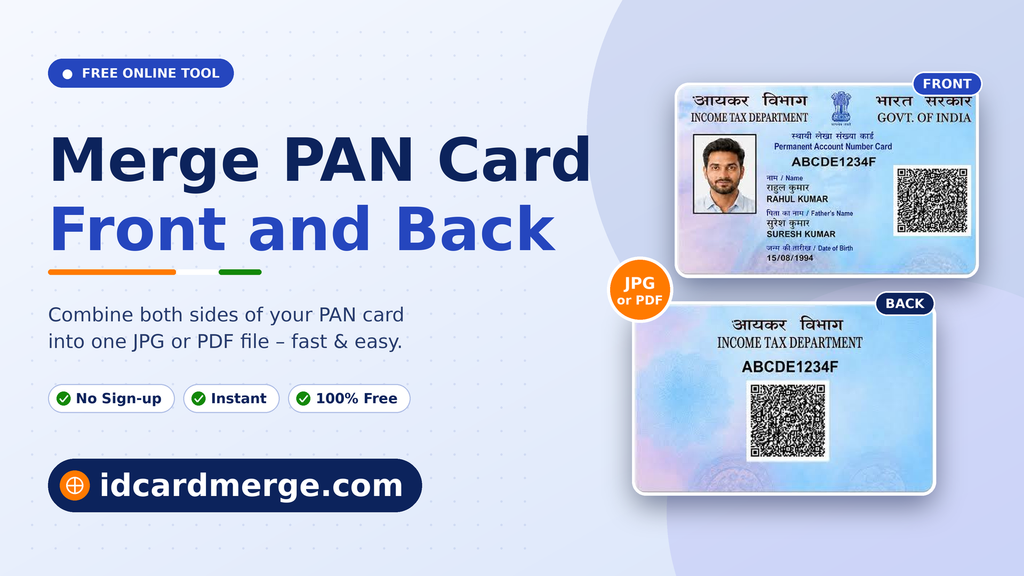
Have you ever needed to upload your PAN card online and discovered that the front and back are saved as two separate images? It can be frustrating when an application provides only one upload field or asks you to submit both sides together. You might try editing the photos manually, placing them in a document, or sending multiple attachments when all you really need is one convenient file.
The PAN Card Front and Back tool on idcardmerge.com can help simplify this task. Instead of arranging two images manually in a photo editor, you can use an image-merging tool to bring both sides together in a single file. Choose a suitable layout, check the result, and save the combined copy in a supported format.
Whether you’re organizing your digital records or preparing documents for an application, a combined PAN card image can make the process easier when the receiving organization accepts this format.
How to Combine PAN Card Front and Back
You don’t need advanced image-editing skills to put both sides together. Start with clear images of your PAN card and follow these steps.
Step 1: Upload the front side. Open the relevant image-merging tool on idcardmerge.com and select a photo or scan of the front of your PAN card. Make sure the name, PAN details, and other printed information are visible and readable.
Step 2: Add the back side. Select the image of the reverse side of the same PAN card. Check that you have chosen the correct image and that it is facing the right direction. If the image is blurry or has reflections, take a clearer photo before continuing.
Step 3: Choose your layout. If layout options are available, select Vertical to place the front above the back or Horizontal to position the images side by side. Choose the arrangement that best suits your intended use.
Step 4: Preview the combined image. Check that both sides are included, the card edges are visible, and no important information has been cropped. Both images should be easy to read without stretching or distortion.
Step 5: Download your file. Select a supported output format, such as JPG or PDF, if available. Save the result to your device and open it once to make sure the combined copy looks correct.
That’s all you need to prepare a single file containing both sides. Before submitting it, confirm that the organization receiving your document accepts a merged copy and the selected file format.
Why Do People Need Their PAN Card Front and Back Together?
Keeping both sides in one file can be helpful when you need to organize or submit your PAN card images. Instead of managing two separate photographs, you can prepare one combined copy for situations where it is accepted.
- Financial documentation. Banks and financial service providers may request PAN details as part of certain applications or verification procedures. A combined file can be convenient when one attachment is accepted.
- Online applications. Some forms provide a single upload field for supporting documents. Combining both images can make submission simpler when the form allows it.
- Tax-related records. Keeping your PAN card images together can make your digital paperwork easier to organize for future reference.
- Business documentation. You may need to prepare a PAN card copy when dealing with an organization or service provider that requests supporting identification.
- Personal record keeping. A combined file helps you find both sides together instead of searching through separate photographs on your phone or computer.
- Printing and sharing. When someone requests both sides in one document, a merged file can make it easier to print or share the images together.
The main advantage is convenience. However, not every organization accepts combined images. Some require separate uploads, a specific format, or another verification method, so always check the relevant instructions first.
Vertical or Horizontal — Which Layout Should You Choose?
The layout determines how your PAN card images appear in the finished file. Both arrangements are useful, depending on how you plan to use the document.
Vertical layout (front on top, back below) places the two sides one underneath the other. It works well when you want a page-style document that is easy to print, review, or store. It can also be appropriate when instructions specifically ask for both sides on one page.
Horizontal layout (front and back side by side) places the images next to each other. This arrangement can be convenient when someone needs to inspect both sides together on a computer screen or when you want a wider image for digital sharing.
If the receiving organization specifies a layout, follow its instructions. Otherwise, choose the arrangement that keeps the PAN card details readable and avoids unnecessary empty space.
Whichever layout you use, make sure the original proportions are preserved. Enlarging or shrinking images too much can make small printed details harder to read.
JPG or PDF — Which File Format Is Better?
After combining your PAN card images, choose a file format based on the requirements of the receiving website or organization.
| Format | Main Advantage | Suitable For |
|---|---|---|
| JPG/JPEG | Often produces a relatively small image file | Forms that accept image uploads |
| PNG | Preserves image data without lossy compression | When image detail matters |
| Convenient for documents and printing | Applications that accept PDF files |
JPG: A Practical Choice for Images
JPG is widely supported by phones, computers, websites, and email services. It is often a practical option when you need to upload or share a compact image.
One limitation is that JPG uses lossy compression. Repeated editing and saving may gradually reduce image quality, so begin with a clear original photograph and avoid unnecessary conversions.
PNG: Useful for Maintaining Image Detail
PNG uses lossless compression, which preserves image data when saving the file. It can be helpful when you want to retain image details and the resulting file size is acceptable.
However, PNG files may be larger than comparable JPG images. Check the upload-size limit before choosing this format.
PDF: Convenient for Document Submission
PDF is useful when a website or organization asks for a document rather than an image. It can keep both sides together in a format that is convenient to save, print, and share.
Before submitting your PDF, open it and check that both sides appear correctly. If a particular application requires both sides on one page, confirm that the final document follows that instruction.
Which format should you choose? Use JPG when an image is accepted, PNG when preserving image detail is important, or PDF when a document format is requested. The recipient’s requirements should always guide your choice.
Why Use an Online PAN Card Merger?
Combining two photographs manually can take longer than expected. You may need to open an editor, create a canvas, adjust the image sizes, and arrange both sides before exporting the final file.
An online image-merging tool offers a more direct approach.
- Less manual editing. Bring the images together without having to arrange them from scratch in a separate photo editor.
- A more organized file. Keep both sides together instead of managing separate photographs.
- An easier workflow. Select your images, use the available layout options, and save the result without learning complicated editing controls.
- Convenient digital storage. Save a combined copy for future reference when keeping both sides together is useful.
- Suitable output options. If the tool supports different formats, choose one that matches your intended use and the recipient’s requirements.
Protect Your PAN Card Information
Your PAN card contains sensitive personal information, so privacy deserves attention. Before uploading images to an online tool, review its privacy policy and check how uploaded files are processed, whether they are sent to a server, and whether they are retained.
Do not assume that files remain entirely on your device or are automatically deleted unless the website clearly confirms this. Use a service you trust, avoid sharing PAN card images publicly, and send the combined file only to an appropriate recipient.
Also, avoid making unnecessary edits to the card images. Some organizations require an unaltered copy, and changes that hide information may affect acceptance.
Remember that combining images does not verify the PAN card, change its official status, or replace the original document.
A Few Tips Before You Upload
A clear combined file starts with good source images. These simple tips can help you get a better result.
- Use even lighting. Take photographs in good indoor light or daylight. Avoid reflections and harsh flash that can hide printed details.
- Keep the card flat. Place the PAN card on a plain surface and photograph it from directly above to reduce distortion.
- Choose sharp images. Use a clear original photograph or scan rather than a screenshot that has already been compressed several times.
- Keep every edge visible. Avoid cropping the sides of the card or removing information that the recipient may need.
- Check both images carefully. Make sure the front and back belong to the same card and are correctly oriented.
- Watch the file size. If the resulting file exceeds an upload limit, use suitable compression while preserving readability.
- Inspect the downloaded result. Open the combined file and zoom in to check small text and other important details.
- Follow submission instructions. Confirm the required format, file size, and layout before uploading the finished copy.
A quick review can help you avoid submitting a file that is incomplete, blurry, or unsuitable for the intended application.
Frequently Asked Questions About PAN card front and back
1. How can I combine PAN card front and back in one file?
Open a compatible image-merging tool, upload the front and back images, choose a suitable layout if available, and download the combined file in a supported format. Check that both sides remain readable before using it.
2. Can I merge PAN card front and back into a PDF?
Yes, if the tool supports PDF export. Choose PDF from the available output options and check that both images appear correctly in the final document.
3. Can I combine PAN card images on my mobile phone?
Yes, provided the merging tool supports your mobile browser. Select the two images from your phone, follow the available steps, and save the combined result.
4. Which image formats can I use for my PAN card?
JPG, JPEG, and PNG are commonly used image formats. However, supported formats depend on the specific tool, so check its upload instructions before selecting your files.
5. Will merging the PAN card images change my original card?
No. Merging combines copies of the images you provide. It does not officially modify, verify, renew, or replace the PAN card issued by the relevant authority.
6. Why does my combined PAN card image look blurry?
The original photos may be out of focus, poorly lit, or heavily compressed. Try taking clearer photos and avoid excessive compression when exporting the combined file.
7. Can I use a merged PAN card file for official applications?
Only when the receiving organization accepts a combined image or PDF. Some applications require separate images or a particular format, so check the instructions before submitting your document.
8. Is it safe to upload PAN card images to an online tool?
Safety depends on the website’s privacy and security practices. Review its privacy policy before uploading personal information, and choose a trusted service that clearly explains how it handles files.
9. Can I merge a scanned PAN card with a phone photograph?
In many cases, yes, provided the tool supports both image formats. Use clear images with similar orientation and ensure all important information remains visible.
10. What should I do if my merged PAN card file is too large?
Check the maximum file size accepted by the receiving website. If necessary, use an image or PDF compressor and then inspect the result to ensure that the printed details remain readable.
Combine Your PAN Card Front and Back in One File
Keeping the front and back of your PAN card in separate images can make document preparation inconvenient when you need to provide both sides together. Combining them into one clear file helps you keep your records organized and makes sharing more convenient when the recipient accepts a merged copy.
The PAN Card Front and Back tool on idcardmerge.com provides a practical starting point for bringing both images together. Begin with clear photographs, choose a suitable layout and supported output format, and check the finished file before submitting it.
Visit idcardmerge.com to explore the available tools and make everyday document preparation easier.